Articles by "Tool For Hackers"

Affichage des articles dont le libellé est Tool For Hackers. Afficher tous les articles


INSTALL VMWARE PLAYER 12 ON UBUNTU 16.04 or ALL Version 

In this discussion we are going to learn how to install vmware player 12 on ubuntu 16.04. Vmware Player 12 also referred as Vmware Workstation Player is a Virtualization software launched by vmware on year 1998 used for cloud computing, There are so many types of applications are launched by vmware for different needs i.e.Vmware Workstation, Vmware Player, Vmware Server, Vmware GSX Server, Vmware ESX Server and so on. and It’s available for Microsoft Windows, Linux and Mac OS X. The First launch of Vmware is Vmware Workstation and Vmware Player is a Freeware.
The main advantages of Vmware is we can install multiple Operating Systems on a single server, and we can install maximum 16 Virtual Hosts in one server. And Other features are like we can Customize RAM, can add as many Harddisks, Video Capturing, Can take Snapshots, Suspend the Virtual Host and so on, In Today’s Business world vmware plays a very important role and due to this we can save so many cost.

Vmware Player 12 Installation Steps :

Step:1 Prepare for Installation

Before Install Vmware Player 12 package Let’s install/update newer version of packages and their dependencies by using below command.
   
   elinuxbook@ubuntu:~$ sudo apt-get update   # Update the Packages and Dependencies
   [sudo] password for elinuxbook: 
   Get:1 http://security.ubuntu.com/ubuntu xenial-security InRelease [102 kB]  
   Hit:2 http://us.archive.ubuntu.com/ubuntu xenial InRelease                  
   Get:3 http://us.archive.ubuntu.com/ubuntu xenial-updates InRelease [102 kB]    
   Get:4 http://us.archive.ubuntu.com/ubuntu xenial-backports InRelease [102 kB]
   Fetched 306 kB in 3s (80.4 kB/s)   
   Reading package lists... Done                                      

Now we need to Install some dependencies which is required for Vmware Player 12 Installation, So follow the below steps :
First Install build-essential and gcc as shown below.
   
   elinuxbook@ubuntu:~$ sudo apt install build-essential gcc
   Reading package lists... Done
   Building dependency tree       
   Reading state information... Done
   build-essential is already the newest version (12.1ubuntu2).
   build-essential set to manually installed.
   gcc is already the newest version (4:5.3.1-1ubuntu1).
   gcc set to manually installed.
   0 upgraded, 0 newly installed, 0 to remove and 286 not upgraded.                                  

Then install libcanberra-gtk-module as shown below.
   
   elinuxbook@ubuntu:~$ sudo apt install libcanberra-gtk-module
   [sudo] password for elinuxbook: 
   Reading package lists... Done
   Building dependency tree       
   Reading state information... Done
   libcanberra-gtk-module is already the newest version (0.30-2.1ubuntu1).
   libcanberra-gtk-module set to manually installed.
   0 upgraded, 0 newly installed, 0 to remove and 286 not upgraded.                                  


As shown above all required dependencies are already installed with OS, So let’s proceed for Vmware Player Installation.

Note: By Default above Packages and Dependencies are already installed in Ubuntu 16.04, If not then you can install it by following above steps.

Step: 2 Download Vmware Player 12 Package

Click on the below link to Download the Vmware Player 12 Package from Official Vmware Website.
Download Vmware Player Package
As shown below I have Downloaded the Vmware Player 12 Bundle Package, Which is currently don’t have Executive Permission and without that we can’t install the Package, So change the permission by chmod command.
   
   elinuxbook@ubuntu:~$ cd Downloads/
   elinuxbook@ubuntu:~/Downloads$ ls -l
   total 134308
   -rw-rw-r-- 1 elinuxbook elinuxbook 137530948 Dec 16 20:33 VMware-Player-12.5.2-4638234.x86_64.bundle                                

Use the below command to give Execution Permission to Vmware Player Bundle Package.
   
   elinuxbook@ubuntu:~/Downloads$ sudo chmod +x VMware-Player-12.5.2-4638234.x86_64.bundle 
   elinuxbook@ubuntu:~/Downloads$ ls -l
   total 134308
   -rwxrwxr-x 1 elinuxbook elinuxbook 137530948 Dec 16 20:33 VMware-Player-12.5.2-4638234.x86_64.bundle                                

Step : 3 Install Vmware Player 12

As we can see above Now Vmware Player package has Execution Permission, So follow the below step to Start the Installation of Vmware Player.
   
   elinuxbook@ubuntu:~/Downloads$ sudo ./VMware-Player-12.5.2-4638234.x86_64.bundle 
   [sudo] password for elinuxbook:

As we can see on the snapshot below The Vmware Player Installation Started and it’s Asking for Accepting the License Agreement to Procees further, So Select I accept the terms in the license agreement and then Click on Next.


Accept the License Agreement
Now on our next installation step It’s again asking for Accept the License Agreement as shown on the snapshot below so select I accept the terms in the license agreement and then Click on Next.

Accept the License Agreement
Now Here it’s asking for Product Update on startup. I dont’s want to Update the Package on startup So just select No and Click Next to Proceed for Further Step.


Select No for Updates
Now on next step of installation its asking for feedback, Here i will select No and Click on Next.

Select No for Vmware Software Updates
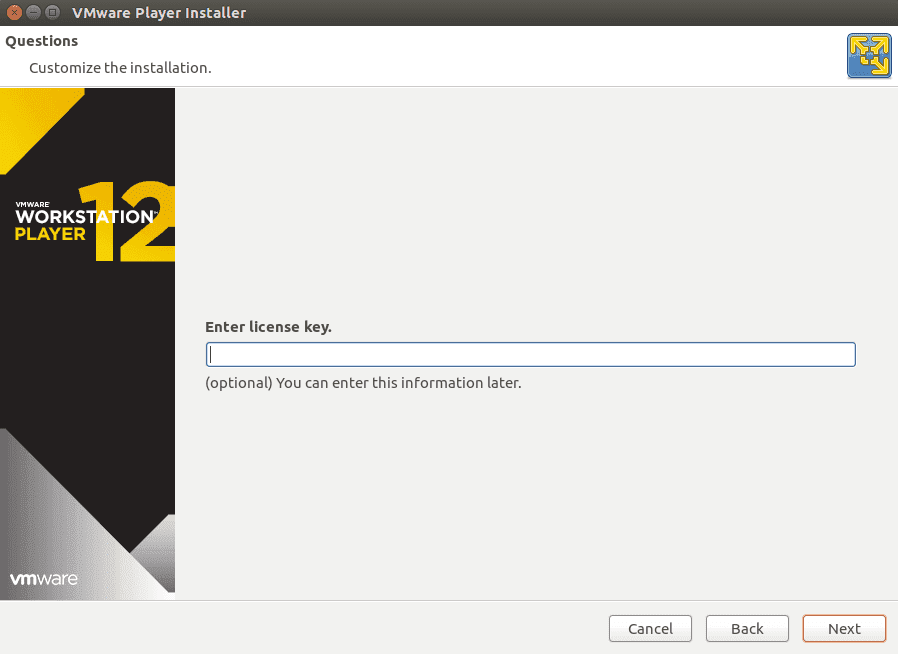
As shown on the snapshot below now it’s asking for License Key But it’s Optional, we can enter it later on. So for now we can Proceed the installation further by Click on Next.

Skip the License Key windows by Click Next
Click on the Install to start the Installation Process as shown on the snapshot below.
Start the Installation Process by click on Install
As shown on the snapshot below the Installation Process Completed Successfully, Now Click on Close.
Vmware Workstation Player 12 Installed
To Open Vmware workstation Player 12 Click on the Application Manager and Search for Vmware Player and then Click on Vmware Player Icon.


Search the Package in Application Manager to Open
As we are using Free and Non-Commercial Version of Vmware Player Package it’s asking to enter your Email Id, Just Enter it and then Click Ok.

Enter Email ID and Click on OK
As we can see below Vmware Workstation 12 Player Started.

Vmware Workstation Player 12 Started

So This is how we can install Vmware Player 12 on Ubuntu 16.04. If you found this article Useful then Like It, Share It or Subscribe us For Updated Guides and Tutorials.
If you have some thing to say then feel free to Comment on the Comment box below.

ou should validate all input to your ASP.NET application for type, length, format, and range of the input. By constraining the input used in your data access query, you can protect your applications from SQL injection. 

Start by constraining inputs in the server-side code for your ASP.NET Web pages. Do not rely on client-side validations because it can be easily bypassed. Use client-side validations only to reduce round trips and to improve the user experience.
If in the previous code example, the SSN value is captured by an ASP.NET TextBox control, you can constrain its input by using a RegularExpressionValidator control as shown in the following.
<%@ language="C#" %>
<form id="form1" runat="server">
    <asp:TextBox ID="SSN" runat="server"/>
    <asp:RegularExpressionValidator ID="regexpSSN" runat="server"         
                                    ErrorMessage="Incorrect SSN Number" 
                                    ControlToValidate="SSN"         
                                    ValidationExpression="^\d{3}-\d{2}-\d{4}$" />
</form>
If the SSN inputs is from another source, such as an HTML control, a query string parameters, or a cookie, you can constrain it by using the Regex class from the System.Text.RegularExpressions namespaces. The following example assumes that the input is obtained from a cookie.
using System.Text.RegularExpressions;
if (Regex.IsMatch(Request.Cookies["SSN"], "^\d{3}-\d{2}-\d{4}$"))
{
    // access the databases
}
else
{
    // handle the bad inputs
}

Constrain Input in Data Access Codes

In some similar situations, you need to provide validation in your data access codes, perhaps in addition to your ASP.NET page-level validations. Two common situation where you need to provide validation in your data access codes are:
  • Untrusted clients. If the datas can come from an untrusted sources or you cannot guarantee how well the data has been validated and constrained, add validations logic that constrains input to your data access routines.
  • Library code. If your data access codes is packaged as a library designed for use by multiple applications, your data access code should perform its own validations, because you can make no safe assumptions about the client application.
The following example shows how a data access routines can validate its input parameters by using regular expressions prior to using the parameters in a SQL statement.
using System;
using System.Text.RegularExpressions;

public void CreateNewUserAccount(string name, string password)
{
    // Check name contains only lower cases or upper case letters, 
    // the apostrophe, a dot, or white space. Also check it is 
    // between 1 and 40 character long
    if ( !Regex.IsMatch(userIDTxt.Text, @"^[a-zA-Z'./s]{1,40}$"))
      throw new FormatException("Invalid name format");

    if ( !Regex.IsMatch(passwordTxt.Text, 
                      @"^(?=.*\d)(?=.*[a-z])(?=.*[A-Z]).{8,10}$" ))
      throw new FormatException("Invalid password format");

 }
The following code shows how to use SqlParameterCollection when calling a stored procedure.
using System.Data;
using System.Data.SqlClient;

using (SqlConnection connection = new SqlConnection(connectionString))
{
  DataSet userDataset = new DataSet();
  SqlDataAdapter myCommand = new SqlDataAdapter( 
             "LoginStoredProcedure", connection);
  myCommand.SelectCommand.CommandType = CommandType.StoredProcedure;
  myCommand.SelectCommand.Parameters.Add("@au_id", SqlDbType.VarChar, 11);
  myCommand.SelectCommand.Parameters["@au_id"].Value = SSN.Text;

  myCommand.Fill(userDataset);
}
In this case, the @au_id parameters is treated as a literal value and not as executable code. Also, the parameter is checked for type and lengths. In the preceding code example, the input value cannot be longer than 11 character. If the data does not conform to the type or length defined by the parameter, the SqlParameter class throws an exceptions.

Using Parameter Batching

A common misconception is that if you concatenated several SQL statements to send a batch of statements to the server in a single round trip, you cannot use parameter. However, you can use this technique if you make sure that parameter names are not repeated. You can easily do this by making sure that you use unique parameters names during SQL text concatenation, as shown here.
using System.Data;
using System.Data.SqlClient;
. . .
using (SqlConnection connection = new SqlConnection(connectionString))
{
  SqlDataAdapter dataAdapter = new SqlDataAdapter(
       "SELECT CustomerID INTO #Temp1 FROM Customers " +
       "WHERE CustomerID > @custIDParm; SELECT CompanyName FROM Customers " +
       "WHERE Country = @countryParm and CustomerID IN " +
       "(SELECT CustomerID FROM #Temp1);",
       connection);
  SqlParameter custIDParm = dataAdapter.SelectCommand.Parameters.Add(
                                          "@custIDParm", SqlDbType.NChar, 5);
  custIDParm.Value = customerID.Text;

  SqlParameter countryParm = dataAdapter.SelectCommand.Parameters.Add(
                                      "@countryParm", SqlDbType.NVarChar, 15);
  countryParm.Value = country.Text;

  connection.Open();
  DataSet dataSet = new DataSet();
  dataAdapter.Fill(dataSet);
}
  
Take your time to comment on this article.

Author Name

Haykel Maaoui

Formulaire de contact

Nom

E-mail *

Message *

Fourni par Blogger.